

Remember the days of dial-up and chunky pixels? If you’re feeling a bit nostalgic for the simple days of computing, there’s a neat little web app that lets you relive the classic MS Paint experience right in your browser. It’s called JS Paint, and it’s surprisingly faithful to the original. Whether you’re a Windows veteran or just curious about digital history, this tool offers a fun trip down memory lane.
Key Takeaways
- JS Paint faithfully recreates the classic MS Paint interface and tools in a web browser.
- It offers a nostalgic journey back to the look and feel of 90s computing.
- The application includes familiar tools like the pencil, spray can, and even the help screen.
- JS Paint works across various operating systems and is useful for quick image edits and markups.
- It appeals to modern users seeking simplicity and those with existing muscle memory for the original application.
Reliving the Classic MS Paint Experience with JS Paint
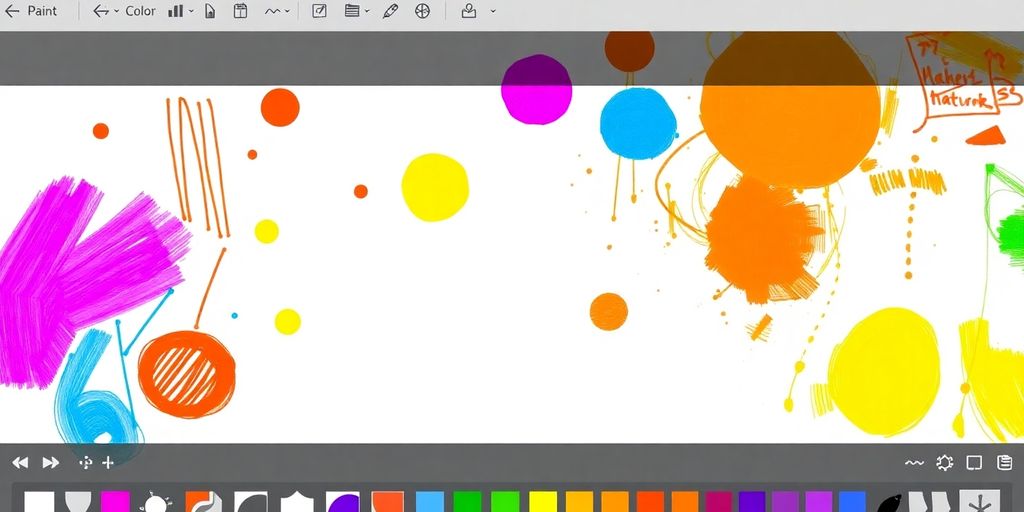
Remember the days of dial-up internet and chunky CRT monitors? For many of us, Microsoft Paint was the gateway to digital creativity, a simple yet powerful tool that came standard with Windows. Now, thanks to JS Paint, that familiar experience is back, right in your web browser. It’s a trip down memory lane, offering a chance to revisit the software that introduced a generation to digital art and basic image manipulation.
A Nostalgic Journey Back to the 90s
This project really taps into that feeling of nostalgia. It’s not just about recreating the look of old Paint; it’s about capturing the feel. From the pixelated icons to the way the menus pop up, it’s all designed to transport you back to a simpler time. It’s amazing how a piece of software from decades ago can still evoke such strong memories and feelings. It’s like finding an old favorite toy you thought was lost forever.
Microsoft Paint Recreated in Your Browser
JS Paint is a JavaScript-based recreation of the classic MS Paint. It aims for accuracy, bringing the beloved application to anyone with an internet connection. You don’t need to install anything; just open your browser and start drawing. It’s a clever way to experience that classic drawing tool without needing an old Windows machine or dealing with compatibility issues. The developers have put a lot of effort into making it work just like you remember.
The Charm of the Original Interface
What makes JS Paint so special is its commitment to the original interface. While newer versions of Paint have added more complex features and a different look, JS Paint sticks to the tried-and-true design. This means all the tools you remember – the pencil, the spray can, the fill bucket – are exactly where you expect them to be. It’s this dedication to the original user experience that really makes it shine.
Exploring the Features of JS Paint

JS Paint really nails the feeling of using the classic Microsoft Paint. It’s not just a visual copy; the developers put a lot of effort into making the tools behave just like you remember. You’ve got all the familiar icons lined up, ready for action. The pencil, the brush, the fill bucket, the spray can – they’re all there, and they work pretty much as expected. It’s impressive how they’ve managed to recreate this in a web browser. The attention to detail is what really makes it shine.
All the Familiar Tools at Your Fingertips
When you open JS Paint, it’s like stepping back in time. The toolbar is instantly recognizable, packed with the tools you’ve probably used a million times. Whether you’re drawing freehand with the pencil, making shapes with the line or rectangle tools, or filling areas with color, everything feels right. It’s surprisingly robust for a web application, letting you do quick edits without needing to install anything. It’s a great way to get that simple, no-fuss image editing experience back.
Attention to Detail in Every Aspect
What’s really cool is how many little things they got right. Even the way the help topics load feels like the original MS Paint. It’s these small touches that bring back the nostalgia. You can tell a lot of thought went into making this feel authentic. It’s not just about having the tools; it’s about the whole experience, down to the little animations and how menus pop up. It’s a faithful recreation, and that’s a big part of its charm. You can even try out a "modern" theme if you want a different look, though the classic one is hard to beat for that authentic feel.
The Recreated Help Screen Experience
Remember the help files in MS Paint? JS Paint brings that back too. Clicking on the help topics feels exactly like it did back in the day. It’s a small thing, but it adds to the overall immersion. This recreated help section is so well done, it makes you appreciate the simplicity and directness of older software interfaces. It’s a nice reminder of a time when software was straightforward and didn’t try to hide its functionality behind layers of menus. It’s a testament to the original design that it still holds up so well, and JS Paint does a great job of bringing that back to your browser.
JS Paint’s Surprising Functionality
It’s easy to dismiss JS Paint as just a fun throwback, but honestly, this thing packs a punch. It’s not just about looking like the old MS Paint; it actually works, and works pretty well, which is kind of a big deal for a web app. You can actually get stuff done with it, which is more than I can say for some other browser-based tools I’ve tried.
Impressive Performance in a Web App
For something running entirely in your browser, JS Paint is surprisingly zippy. Loading up the application and using the tools feels pretty responsive. It’s not like you’re waiting around for things to happen, which is a relief. The speed at which the help articles load, mimicking the original MS Paint, is a testament to the attention to detail. It really makes you appreciate the effort that went into making this feel authentic, not just in looks but in how it behaves too. It’s a solid example of what you can achieve with modern web technologies when you focus on the user experience.
Works Across Multiple Operating Systems
One of the best parts? You don’t need Windows to use it anymore. Whether you’re on a Mac, a Linux machine, or even your phone, as long as you have a web browser, you can fire up JS Paint. This is a huge win for anyone who misses the simplicity of MS Paint but doesn’t have access to a Windows machine. It really bridges that gap, letting folks on other operating systems get that familiar drawing and editing experience. It’s pretty neat how it just works, no installs or compatibility headaches.
Useful for Quick Edits and Markups
This is where JS Paint really shines for me. Need to quickly circle something on a screenshot? Or maybe add a quick arrow to point something out? JS Paint is perfect for that. It’s so much faster than firing up a more complex photo editor. You just open it up, do your quick edit, save it, and you’re done. It’s ideal for those little tasks that don’t require a whole lot of fuss. You can even use it for simple diagrams or basic image manipulation without any trouble. It’s like having that trusty old tool ready whenever you need it, without the bloat. For tasks like annotating screenshots, it’s a real time-saver, letting you get your edits done without much hassle.
The simplicity is its strength. It’s not trying to be Photoshop; it’s just trying to be MS Paint, and it nails that. This makes it incredibly accessible for anyone who just needs to do a basic job without a steep learning curve.
Here’s why it’s so handy for those quick jobs:
- Speed: Loads fast, tools respond instantly.
- Simplicity: No complicated menus or features you’ll never use.
- Accessibility: Works on any device with a browser.
- Familiarity: If you’ve ever used MS Paint, you already know how to use this.
It’s genuinely useful for everyday tasks that other programs might make more complicated than they need to be.
Comparing JS Paint to the Original
So, how does JS Paint stack up against the actual MS Paint we all grew up with? It’s a pretty close call, honestly. The developers really went the extra mile to make it feel familiar, and for the most part, they nailed it. The overall look and feel are incredibly similar, which is a huge part of its charm.
Accuracy of the Recreation
When you first open JS Paint, it’s like stepping back in time. The toolbar, the color palette, even the little icons for the tools – they’re all there, looking just like you remember. It’s not just a visual copy, either. Many of the little quirks and behaviors seem to be replicated too. For instance, the way the help topics load feels eerily similar to the original. It’s these small details that really sell the experience.
Subtle Differences in User Experience
However, it’s not a perfect 1:1 replica. Some users have pointed out that certain tool behaviors might not be exactly the same. For example, the timing of when toolbar buttons activate (on mouse up instead of mouse down) can feel a bit off if you’re used to the original. And while the classic theme is spot on, the newer themes might not feel as intuitive. It’s like looking at a familiar face with a slightly different haircut – still them, but something’s just a little bit different.
The Debate on Tool Behavior
There’s also the matter of how certain tools actually work under the hood. Some folks have noticed that the algorithms used for things like drawing filled circles might differ slightly, leading to minor visual discrepancies, like those pointy corners on rectangles. It’s not a dealbreaker for most, especially for quick edits, but for pixel-perfect purists, these subtle differences might be noticeable. It makes you wonder about the exact code that powered the original, a bit like trying to recreate a favorite family recipe without the exact same ingredients. If you’re looking for a modern alternative that Microsoft itself is phasing out, you might want to check out Paint 3D.
Here’s a quick rundown of some common points:
- Visuals: Mostly spot-on, capturing the classic MS Paint aesthetic.
- Tool Functionality: Very close, but some minor behavioral differences exist.
- Performance: Surprisingly good for a web app, though some users report latency.
- Nostalgia Factor: Extremely high, thanks to the attention to detail.
Ultimately, JS Paint does an amazing job of bringing back that beloved MS Paint experience. While it might not be an exact carbon copy in every single function, it captures the spirit and usability that made the original so popular. For most everyday tasks, it’s more than enough to scratch that nostalgic itch.
The Appeal of JS Paint for Modern Users
It’s funny how something as simple as MS Paint can bring back so many memories. For a lot of us, it was our first introduction to digital art and image editing. JS Paint taps into that nostalgia, offering a familiar playground for anyone who grew up with Windows. It’s a digital time capsule that’s surprisingly useful today.
A Simple Solution for Basic Image Editing
Let’s be honest, not everyone needs Photoshop or GIMP for everyday tasks. Sometimes, you just need to quickly crop a screenshot, add a circle around something, or slap some text onto an image. MS Paint, and by extension JS Paint, excels at these straightforward jobs. It avoids the complexity of professional software, making it accessible to everyone. You don’t need to spend hours learning its features; you can just open it and start working. It’s like having a trusty Swiss Army knife for your images.
Bridging the Gap for macOS and Linux Users
For those of us who don’t use Windows, getting that classic MS Paint feel was pretty much impossible. macOS and Linux have their own tools, of course, but they often feel different, sometimes more complicated than necessary for simple edits. JS Paint fills this void perfectly. It lets Mac and Linux users experience the straightforward interface and functionality that many of us remember fondly. It’s a great way to get basic image editing done without needing to install anything extra, just a web browser. You can even drag and drop screenshots directly into the canvas, which is a neat trick for quick markups. It really makes you appreciate how well some artists can adapt tools for new purposes.
Muscle Memory for a Beloved Application
There’s a certain comfort in using software you’re already familiar with. For many, MS Paint is deeply ingrained in their digital muscle memory. You know where the tools are, how they work, and what to expect. JS Paint replicates this so well that you can often jump right in without missing a beat. It’s not just about the look; it’s about the feel and the predictable behavior of the tools. This familiarity makes it incredibly efficient for quick edits and annotations, something that can be surprisingly hard to find in other, more modern applications that constantly change their interfaces.
Potential Enhancements for JS Paint
While JS Paint does a fantastic job of recreating the classic MS Paint experience, there’s always room to grow, right? Thinking about what could make this already great tool even better is a fun exercise. It’s not about fixing what isn’t broken, but more about exploring possibilities that could add new layers of utility or fun.
Exploring Multi-User Collaboration
Imagine being able to collaborate on a drawing with friends in real-time, just like those old
A Nostalgic Trip Back in Time
So, there you have it. JSPaint really does a solid job of bringing back that old MS Paint feel, right in your browser. It’s not just about the tools, but the whole vibe – the simple interface, the familiar sounds (if you enable them!), and the way it just works. It’s a fun way to revisit a piece of computing history, whether you want to quickly edit a screenshot, doodle something silly, or just feel that 90s nostalgia. While it might not replace powerful image editors for complex tasks, for those quick, simple edits or just a trip down memory lane, JSPaint is a fantastic little tool that proves some classics are classics for a reason.
Frequently Asked Questions
What exactly is JS Paint?
JS Paint is a website that lets you use a program just like the old Microsoft Paint, right in your web browser! It was made using computer code called JavaScript, and it looks and works a lot like the Paint program many people remember from the 90s.
Does JS Paint have all the tools from the old MS Paint?
Yes, JS Paint has many of the same tools you’d find in the original MS Paint. You can use the pencil, brush, fill tool, shapes, and text. It even has the spray can and the eraser, all working pretty much like you remember them.
How much does JS Paint look and feel like the real MS Paint?
It’s pretty close! The people who made JS Paint paid a lot of attention to making it feel like the original. The way the menus look, how the tools work, and even how the help section appears are very similar to the classic MS Paint.
What is JS Paint good for?
JS Paint is great for simple tasks like drawing basic shapes, adding text to pictures, or making quick edits. It’s easy to use if you already know how MS Paint works, and it’s handy for anyone who needs to quickly mark up a screenshot or create a simple image without installing new software.
Can I open my own pictures in JS Paint?
You can open image files from your computer by clicking ‘File’ and then ‘Open’. You can also paste images directly into JS Paint from your clipboard. It works on most computers and web browsers, like Chrome, Firefox, and Safari.
Is JS Paint exactly the same as the original MS Paint?
While JS Paint is a fantastic recreation, it might not have every single tiny feature or the exact same speed as the original program that ran on your computer. Some advanced editing might be better done with more powerful programs, but for most everyday tasks, JS Paint is awesome!





 PERFECT PAINTER
Leave a comment