
If you’re into digital art, finding the right drawing apps for PC can make all the difference. With so many options out there, it can be tough to figure out which ones are worth your time and money. Whether you’re a seasoned artist or just starting out, there’s something on this list for you. Here are the top 10 drawing apps for PC that you should definitely check out in 2025.
Key Takeaways
- Adobe Photoshop remains the industry standard and is great for professionals.
- Clip Studio Paint is perfect for comic and manga artists.
- Krita is a powerful free option that supports various styles.
- Procreate is highly regarded for its intuitive interface, though it’s mainly for iPad.
- Affinity Designer offers strong vector capabilities for detailed artwork.
1. Adobe Photoshop
Photoshop remains the king of image editing and digital art. It’s the go-to for professionals, boasting advanced tools and a top-notch brush engine. While it might seem intimidating at first, it’s surprisingly easy to pick up the basics. You don’t need to master every feature, especially since many are geared toward photo manipulation rather than drawing. Once you get the hang of it, you’ll have a solid foundation for using other programs. It’s easy to find tutorials, brushes, and other resources.
Every other painting program is trying to reach Photoshop’s level, whether they admit it or not. The sheer number of tutorials and learning resources makes it great for both beginners and experts.
One downside? Photoshop can be a resource hog, needing a good amount of memory and RAM. Also, it’s now subscription-based, which might not be for everyone. You can get the Creative Cloud Photography Plan for $9.99 USD/month.
Photoshop is prominent in the design and photo processing industry, and many design schools use Photoshop to teach students. This versatile software can export multi-page data for online, in print, and for videos. You can even access these tools via the web for Android devices and phones, or natively with a dedicated app for your iPad. As long as you’ve got a subscription to Creative Cloud, you can download the app for your iPad, or if you’re on a different device, just go to photoshop.adobe.com using your device’s browser.
Here’s a quick rundown:
- Developer: Adobe Systems Co., Ltd.
- Trial: A full-featured seven-day trial is available.
- Community: Large community of artists focusing on design and photography. Many people also have created brushes and other materials to make the program more friendly to draw pictures with.
While you can draw in Photoshop, it’s not its primary focus. Customizing the pen and brush tools takes some time, and features like pen pressure are sometimes off by default. However, if you want a highly customizable program, Photoshop works well. It’s also great at adjusting colors and supports CMYK, which is essential for printed works. If you’re looking for the best drawing program overall, Photoshop is a solid choice.
2. Clip Studio Paint
Okay, so Clip Studio Paint. I’ve been messing around with this one for a while now, and honestly, it’s pretty impressive. It’s like they took Photoshop and tailored it specifically for artists, especially those into comics and manga. It’s got a ton of features that make creating that kind of art way easier.
I mean, sure, it can take a bit to learn everything, but once you get the hang of it, it’s super powerful. Plus, the community is huge, so there are tons of resources and tutorials out there if you get stuck. I was trying to figure out how to import Photoshop brushes the other day, and I found like, a million different guides.
It’s got a really nice interface, and you can tell they put a lot of thought into the details. It’s the kind of software that makes you feel like you can actually create something professional, even if you’re just doodling.
Here’s a quick rundown of what I like:
- Tons of brushes and customization options.
- Great for comics and manga creation.
- Huge community with lots of resources.
- You can even record your process with the canvas timelapse feature and then share it to social media in video format.
And here’s a quick look at the pricing:
| Version | Price (One-Time) | Price (Monthly) |
|---|---|---|
| PRO | $54.00 | $4.49 |
| EX | $237.00 | $8.99 |
3. Corel Painter
Corel Painter aims to bridge the gap between traditional art and digital creation. It’s a painting tool that gives you the freedom to personalize everything, from brushes and color palettes to papers and gradients. It offers a wide range of professional tools for a smooth drawing experience. With over 900 brushes, including 36 new ones, Corel Painter caters to diverse drawing needs. You can also import content from others to enhance your artwork. Many professionals love this software because it accurately replicates the feel of using real-life art tools. If you have a background in traditional art, this is an excellent choice.
It’s amazing how closely the real brushes mimic the genuine experience, but some functions, like resizing or moving images and rotating layers, can be a bit awkward to use. These minor issues might slow you down and cause frustration. This software falls into the higher-priced category, much like Adobe Photoshop. Professionals often prefer it, but I wouldn’t recommend it for hobbyists due to its cost.
Corel Painter is made with drawing and painting in mind. It is good software for someone who wants to digitally replicate their drawing and painting style. Although expensive, its preset brushes and intricate customization make it suitable for various painting styles. However, focusing on realistic brushstrokes makes it less ideal for creating cartoon or comic styles.
Here’s a quick rundown:
- Platforms: Windows, MacOS, Android.
- Price: Free trial, one-time payment, and subscription model
- Over 900 brushes available
Its independent color selector allows you to select a color while checking it against other colors. It also has a Color Harmonies function that lists colors that match the desired color. So even if you aren’t confident in picking colors, these features help inexperienced people choose colors more easily.
Its annual subscription is available for both Mac and Windows, and includes various brush packs for purchase. A more economical version of Painter Essentials 8 is also available. Although it has fewer brushes, the freedom of customization and the independent color selector is comparable to the full-featured version.
Corel also has an app for Android called Painter Mobile that comes in free and paid versions. The paid version comes with more functions.
4. Krita
Okay, so Krita is another one of those programs that people are always talking about. It’s free and open-source, which is a huge plus for anyone who doesn’t want to shell out a ton of cash for software. I remember when I first tried it, I was surprised by how many features it had. It felt like a real, professional-grade program, not some watered-down freebie.
Krita is a solid choice if you’re looking for a digital painting program that won’t cost you anything.
One of the things I like most about Krita is how customizable it is. You can tweak pretty much everything to fit your workflow. The interface can be a little overwhelming at first, but once you get the hang of it, it’s really powerful. Plus, it works on Windows, macOS, and Linux, so you’re covered no matter what operating system you’re using. It’s great for creating concept art, illustrations, comics, and animations.
I’ve heard some people say that Krita can be a bit buggy at times, but honestly, I haven’t run into too many problems. And even if you do, there’s a pretty active community that can help you out. Overall, I think it’s a fantastic option, especially if you’re just starting out with digital art.
5. Paint Tool SAI
Paint Tool SAI is a long-standing favorite among digital artists, especially those diving into the world of manga and anime-style art. It’s known for its straightforward interface and, more importantly, its incredibly smooth brush engine. Many artists praise it for the minimal lag and the natural feel it provides when drawing lines.
It’s not without its quirks, though. Paint Tool SAI is a Windows-only application, so Mac and Linux users are out of luck. Also, it lacks some of the more advanced features you’d find in programs like Photoshop or Clip Studio Paint, such as text input and advanced color correction. You might need to switch to another program to explore top graphic design platforms for those tasks.
Despite its limitations, SAI remains a popular choice, particularly for illustrators who prioritize a clean, responsive drawing experience. The developers at SYSTEMAX are working on Paint Tool SAI Ver.2, which includes features like text input and rulers. A beta version is available on the official website for current owners of Paint Tool SAI.
Paint Tool SAI is a solid choice if you’re looking for a program that excels at the core drawing experience. It’s easy to learn, responsive, and produces beautiful lines. If you need advanced features, you might want to consider other options, but for pure drawing pleasure, SAI is hard to beat.
Here’s a quick rundown of what makes Paint Tool SAI stand out:
- Excellent brush stabilization
- Simple, user-friendly interface
- Lightweight and responsive
6. Procreate
Okay, so Procreate. It’s kind of a big deal in the digital art world, especially if you’re rocking an iPad. It’s not available on PC, which is a bummer, but for tablet users, it’s a top pick. Procreate is known for its intuitive interface and powerful features.
It’s a one-time purchase, which is nice compared to subscription models some other apps use. You get a ton of brushes, can tweak them to your heart’s content, and even make your own. The responsiveness with the Apple Pencil is great, making it feel pretty natural to draw. The drawing experience is really smooth.
Here’s a quick rundown:
- iOS only
- One-time purchase
- Tons of brushes
- Responsive with Apple Pencil
Procreate’s interface is designed to stay out of your way, keeping the focus on your artwork. It’s got a clean look that’s easy to pick up, even if you’re new to digital art. Plus, there are plenty of tutorials online if you get stuck.
7. Artweaver
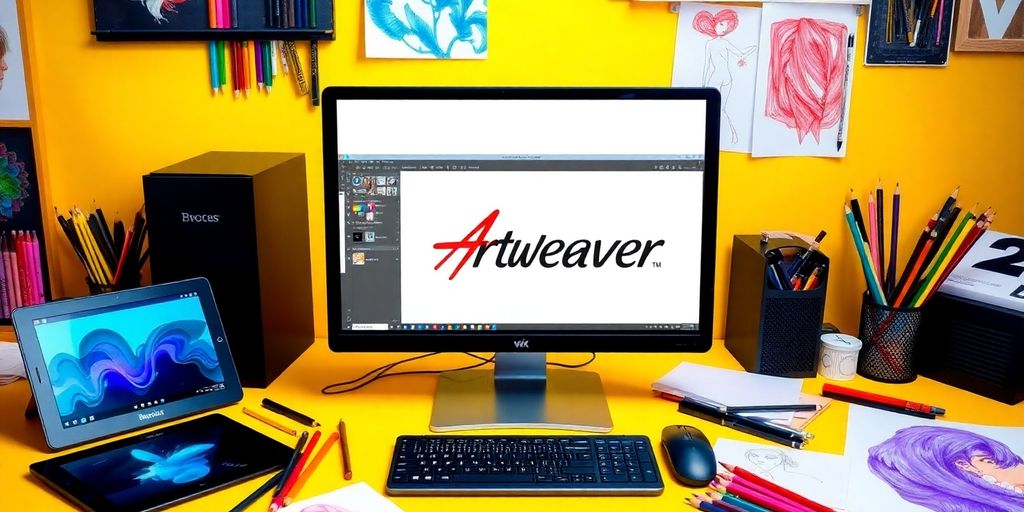
Artweaver is this drawing software that’s been around for a bit, and it’s got a pretty classic vibe. Think of it like Photoshop, but maybe from a few years back. It’s not as fancy, but it’s easy to pick up. You’ll find a bunch of brushes and pencils ready to go, so you can start making art right away.
It’s cool that Artweaver lets you customize things. You can tweak the interface to fit how you like to work. Plus, it records your whole painting process, which is neat if you want to share your technique or just look back at how you did something. It supports layers and transparency, which are super useful for digital art. If you’re into symmetrical stuff, the mirror painting feature can speed things up. There’s even a free version, Artweaver Free for non-commercial use, which is great for students or hobbyists.
One thing to keep in mind is that Artweaver is only for Windows users. So, if you’re on a Mac or something else, you’re out of luck. But if you’re on Windows, it’s worth checking out, especially since there’s a free version to try.
Here are some things you can do with Artweaver:
- Use realistic brushes like circular, airbrush, and pixel brushes.
- Customize the user interface.
- Record and replay your painting process.
8. MediBang Paint
Okay, so MediBang Paint is interesting. It’s free, which is a huge plus, but it does have ads. I’ve been messing around with it for a bit, and honestly, it’s not bad at all, especially if you’re into manga or comics. It’s got a ton of features that you usually only find in paid software.
It’s available on Windows, macOS, Android, and iOS, so you can use it on pretty much any device you have. The cloud integration is pretty smooth, letting you sync your brushes and settings across devices. That’s super handy if you switch between your desktop and tablet a lot. Plus, it’s lightweight, so it runs well even on older computers. You can download MediBang Paint from their site.
One thing I noticed is that you need an internet connection for all the features to work. So, if you’re planning on drawing offline, this might not be the best choice. But if you’re usually connected, it’s a solid option.
Here’s a quick rundown:
- Free to use (with ads)
- Cloud syncing across devices
- Tons of free resources like fonts and backgrounds
- Lightweight and runs well on most devices
It’s definitely worth checking out if you’re looking for a free online drawing app that’s still packed with features.
9. Affinity Designer
Affinity Designer is definitely one to watch. It’s a vector-based program that gives Adobe Illustrator a run for its money, and honestly, it’s got some features that I actually prefer. I remember when I first tried it, I was surprised by how intuitive it felt, especially coming from other, more complex software. It’s got a clean interface, and it doesn’t bog you down with a million different panels and options that you’ll never use.
One of the coolest things about Affinity Designer is that you can actually paint over vector paths with raster brushes. It’s a neat way to add texture and detail to your work. Plus, it supports a bunch of different file formats, like PDF, EPS, SVG, and PSD. It doesn’t support AI files, which is a bummer if you’re collaborating with people who use Adobe Photoshop and Illustrator, but it’s not a deal-breaker for me.
It also has a ton of tools to help you get precise, like grids, guides and alignment snapping. I’ve found these tools super helpful when I’m working on logos or other designs that need to be pixel-perfect. It’s also got some pretty powerful typography editing tools, which is a huge plus if you’re into graphic design.
I think the best part is the price. You pay once and you own it. No subscriptions! It’s a great option if you’re looking for a professional-grade vector design program without the monthly fees.
Here’s a quick rundown of what I like:
- One-time purchase
- Raster and Vector
- Intuitive interface
10. Adobe Fresco
Adobe Fresco is Adobe’s answer to the call for a painting app that really mimics traditional media. Released in 2019, it’s designed for pen and touch devices, and it really shines when you’re trying to recreate the feel of watercolors or oils. I remember when I first tried it, I was genuinely surprised at how the colors mixed and bled together – it’s not something you see in every digital painting program. It’s especially cool if you’re already in the Adobe ecosystem.
One of the best things about Fresco is its brush selection. You get Photoshop’s Pixel brushes, Illustrator’s Vector brushes, and those awesome Live brushes that simulate real paint. Mixing yellow and blue actually makes green, which is a small detail, but it makes a big difference in the overall experience. Plus, you can use both raster and vector brushes on the same canvas, which gives you a lot of flexibility. It’s similar to Clip Studio Paint in that way, blending the best of both worlds.
I think the best part is how well it integrates with other Adobe products. If you’re already using Photoshop or other Adobe apps, Fresco fits right into your workflow. It also uses Photoshop brushes and Adobe’s cloud service, so everything is connected.
Now, there are a couple of downsides. There’s no Android app, which is a bummer for Android users. And while there’s a free version, you need a subscription to get all the features and brushes. The free version gives you around 150 brushes and 2GB of online storage. Subscribe and you’ll gain access to over 10,000 different brushes, and more. This costs just under $10 with a 30-day free trial. Fresco is also included in Adobe bundled software subscriptions, including Adobe Creative Cloud All Apps plans.
Here’s a quick rundown of the pros and cons:
- Loads of features
- Great brush selection
- Replicates real-world painting well
- No Android app
- Subscription needed for extra features and brushes
- Can be overwhelming for beginners
Final Thoughts
So there you have it, the top 10 drawing apps for PC that you should definitely check out in 2025. Each one has its own unique features and strengths, making them suitable for different types of artists. Whether you’re just starting out or you’ve been creating art for years, there’s something here for everyone. Don’t be afraid to experiment with a few of these apps to see which one fits your style best. After all, the right tools can really make a difference in your creative process. Happy drawing!
Frequently Asked Questions
What is the best drawing app for beginners?
Krita is often recommended for beginners because it is free and easy to use.
Can I use these apps on a tablet?
Yes, many of these apps like Procreate and Clip Studio Paint work well on tablets.
Do I need a drawing tablet to use these apps?
While you can use a mouse, a drawing tablet makes it easier and more natural to draw.
Are there free drawing apps available?
Yes, apps like Krita and MediBang Paint are free to use.
Which app is best for professional artists?
Adobe Photoshop is considered one of the best for professional artists due to its advanced features.
Can I use these apps for animation?
Yes, Clip Studio Paint and Procreate have features that allow you to create animations.




 PERFECT PAINTER
Leave a comment